
Operating System
Cyber threats evolve daily, but these 10 proven strategies will transform your digital defense. From simple habits to advanced tools, these methods protect personal data and professional systems alike—without requiring technical expertise.
Enable multi-factor authentication everywhere
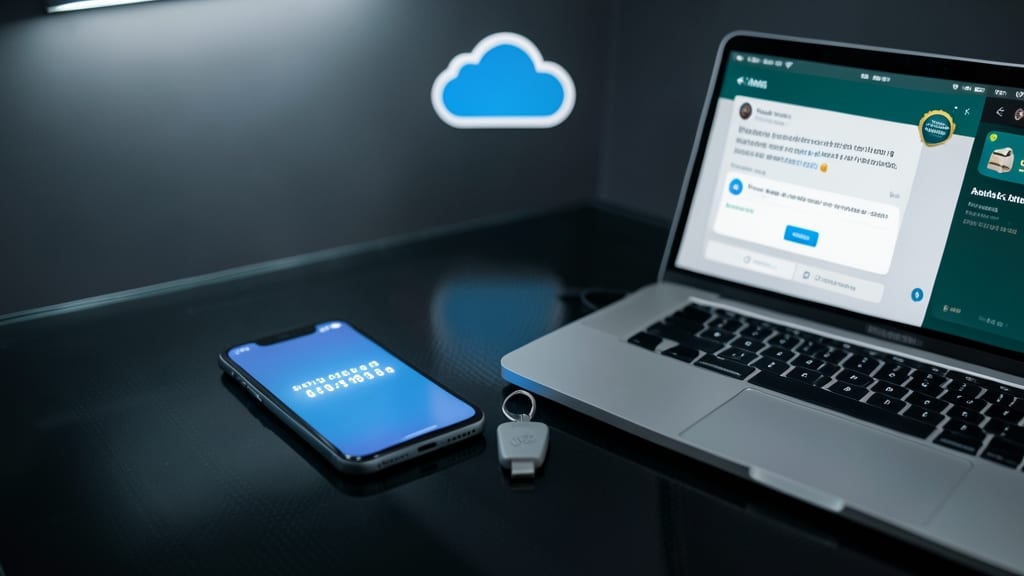
Your passwords alone won’t cut it anymore—multi-factor authentication (MFA) adds an extra layer that thwarts 99.9% of automated attacks. Start with your most critical accounts (email, banking, cloud storage) to lock down the digital keys to your life.
Most services now support SMS codes, authenticator apps (like Google Authenticator or Authy), or biometric verification—all with minimal setup. Even if hackers steal your password, they’ll still need your phone or fingerprint to break in. For extra security, use FIDO2 security keys (like YubiKey) for physical protection against phishing.
This is the #1 defense for freelancers, remote workers, and anyone with sensitive data. Enable it today—your future self will thank you. ✨
Use password manager software
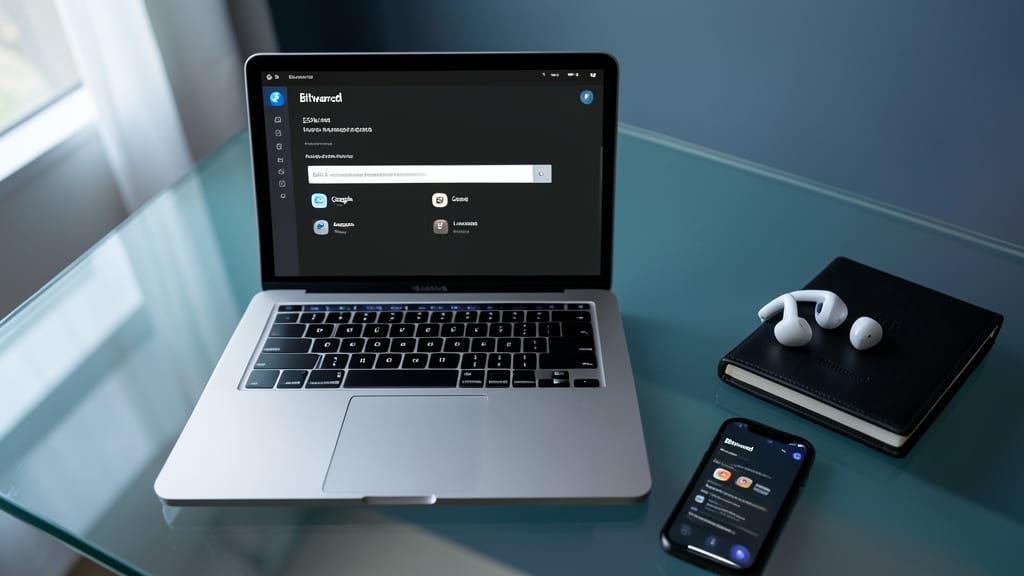
Tired of resetting passwords every other week? A password manager like Bitwarden or 1Password eliminates weak credentials by generating 256-bit encrypted passwords on demand—no memorization required. These tools also auto-fill logins across devices, saving you 10+ minutes daily while boosting security.
Most top-tier managers offer zero-knowledge architecture (your master password never leaves your device) and biometric unlocks for phones. They sync securely across platforms, so your 50+ accounts stay protected without clogging your brain with random strings. Even free tiers include breach monitoring to alert you if a password gets exposed.
Perfect for freelancers, remote workers, or anyone juggling personal/professional logins. Try the free version first—you’ll wonder how you lived without it. ✨
Regularly update all software
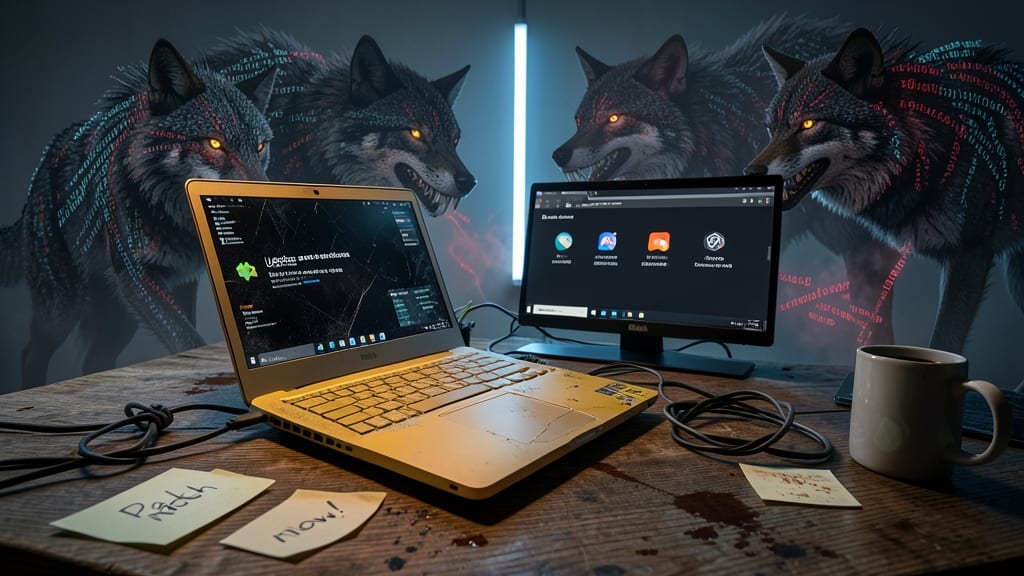
Hackers exploit outdated software like a wolf packs hunting the weakest sheep—90% of cyberattacks target unpatched vulnerabilities. The good news? Most updates install themselves automatically, but you must enable them for operating systems, browsers, and apps to stay protected.
Windows users can enable automatic updates via Settings > Windows Update > Advanced options, while Linux distributions like Ubuntu use unattended-upgrades or package managers (e.g., apt upgrade). For browsers, Chrome and Firefox both offer auto-update features—just check Settings > About to confirm. Even legacy systems (like Windows 7) can get critical patches through extended support programs if properly configured.
This isn’t just for tech experts—small businesses and home users with outdated software are prime targets. Set a monthly reminder to verify updates are running, and you’ll close the most common attack vectors with zero effort. ✨
Implement network firewall protection
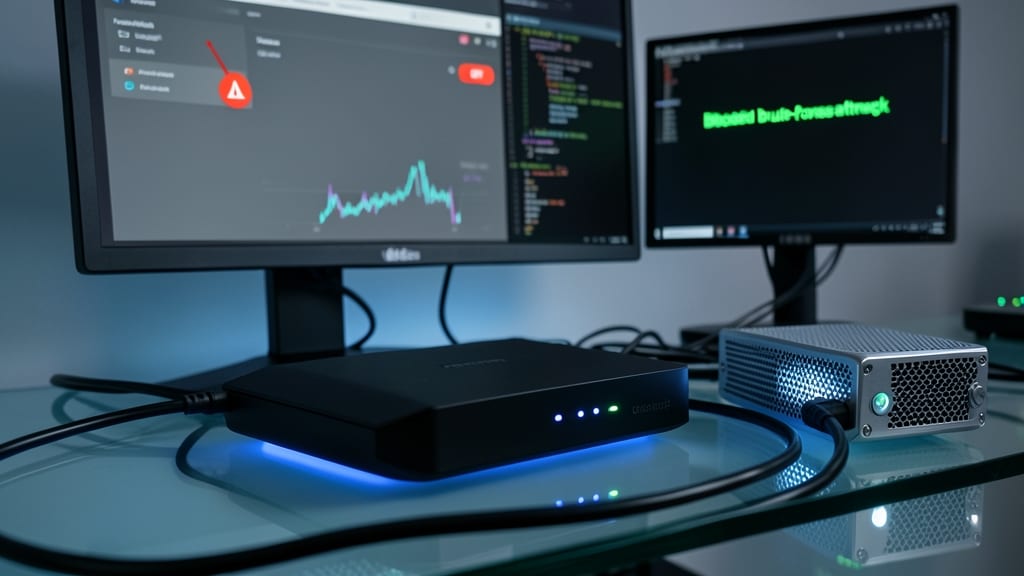
Your network is the first line of defense against cyberattacks—yet most routers ship with firewall settings disabled by default. A properly configured firewall blocks malicious traffic before it even reaches your devices, stopping everything from brute-force attacks to malware downloads in their tracks.
Start with your router’s built-in firewall—most modern models (like Netgear Nighthawk or TP-Link Archer) offer automatic intrusion detection and port blocking. Then enable Windows Defender Firewall (or macOS/Linux equivalents) for an extra layer. The combo creates a two-pronged defense: hardware-level blocking for network-wide threats and software-level filtering for device-specific risks.
This setup is ideal for home offices, gamers, and smart home users—anyone with multiple devices sharing a network. It’s also the easiest way to protect IoT devices (like security cameras) that often lack built-in security. ⚡
Secure home Wi-fi networks
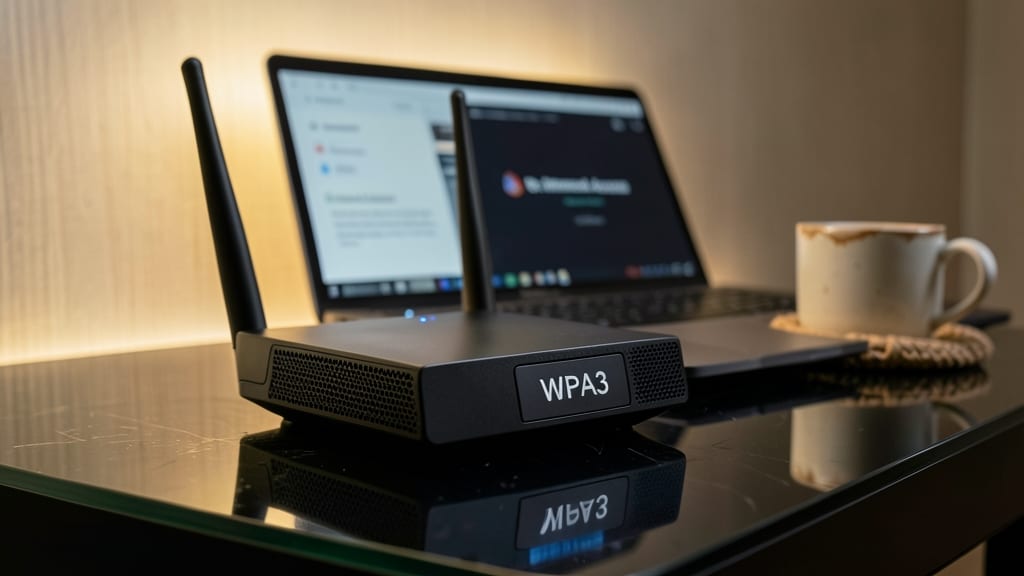
Tired of your Wi-Fi being a free buffet for nosy neighbors? A secure home network isn’t just about speed—it’s about stopping bandwidth leeches and hackers from turning your connection into their playground.
Start by upgrading to WPA3 encryption, the gold standard that thwarts brute-force attacks. Pair it with a 20+ character password (mix letters, numbers, and symbols) and disable WPS—that "easy setup" feature is a hacker’s shortcut. For remote workers, this means no more stolen bandwidth or exposed work files.
Smart home users should also rename their network’s SSID (default names like "Linksys_123" scream "hack me") and enable MAC address filtering for extra layers. A few minutes of setup now saves headaches later. ✨
Educate employees about phishing
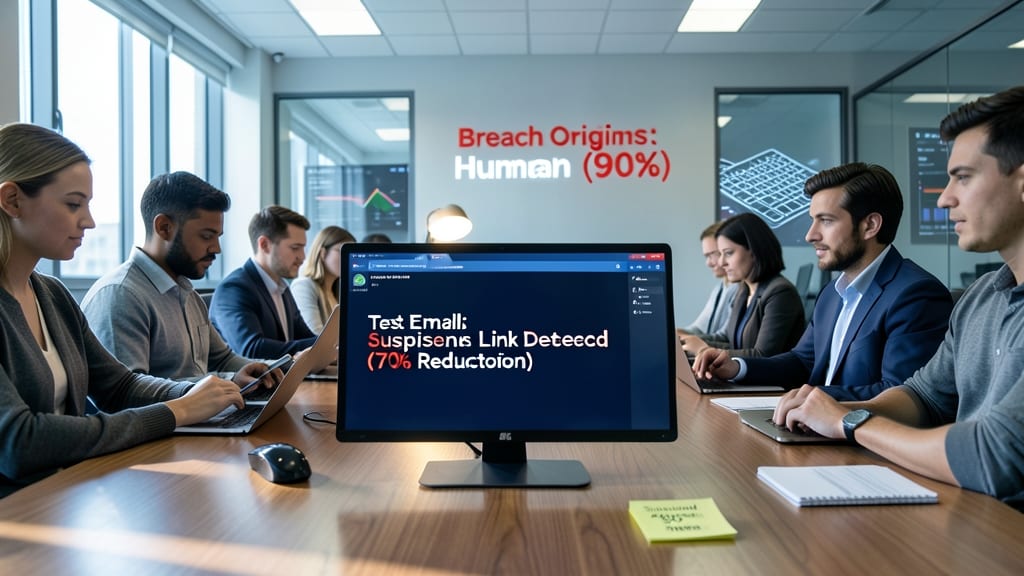
Your employees might be your biggest cybersecurity risk—90% of breaches start with human error. Simulated phishing tests and awareness training aren’t just corporate buzzwords; they’re battle-tested tools that cut click-through rates by 70% or more. The best part? You don’t need a dedicated IT team or expensive software to get started.
Platforms like KnowBe4 or PhishMe offer zero-configuration phishing simulations that mimic real attacks, complete with customizable templates for industries like healthcare or finance. Their monthly training modules (often under $10 per employee) teach spotting red flags like urgent requests, mismatched email addresses, or suspicious links—without disrupting workflows. For smaller budgets, free tools like Google’s Security Awareness Training provide foundational lessons.
This strategy is a must for small businesses where IT resources are stretched thin. Start with a quarterly phishing test and track results—most teams improve dramatically after just one round. 💡
Encrypt sensitive data storage
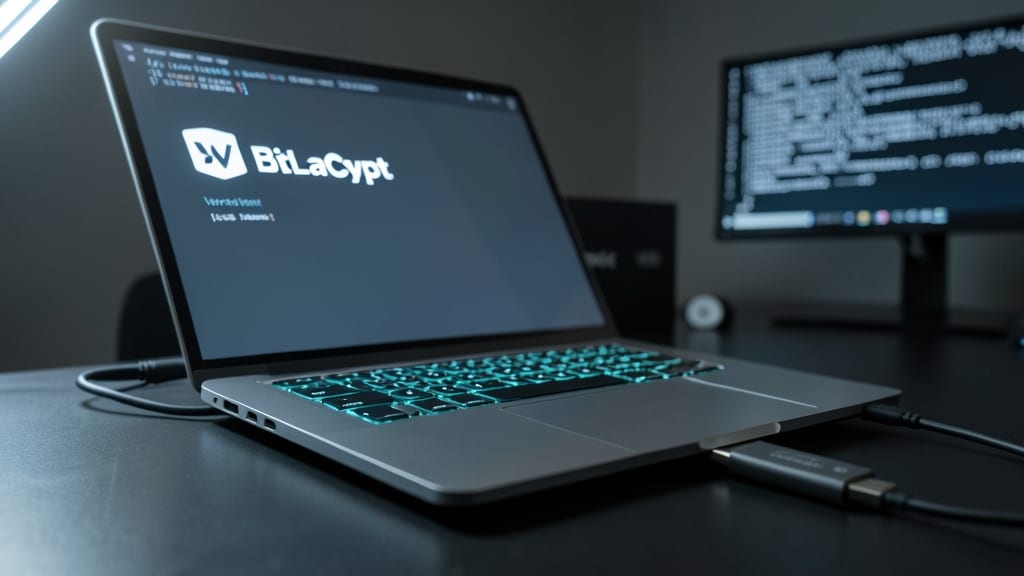
If a thief steals your laptop or a hacker breaches your network, BitLocker (Windows) or VeraCrypt (cross-platform) ensures your files remain unreadable without the encryption key. Unlike basic password protection, these tools encrypt entire drives, making them the gold standard for journalists, lawyers, and anyone handling confidential documents.
BitLocker integrates natively with Windows Pro/Enterprise, using AES-256 encryption with optional TPM (Trusted Platform Module) hardware security. VeraCrypt, meanwhile, works on Windows, macOS, and Linux, offering plausible deniability—a feature that hides encrypted volumes entirely from prying eyes. Both support password, keyfile, or hardware token authentication, and VeraCrypt even lets you create hidden volumes within encrypted containers.
This is your last line of defense for offline data—perfect for freelancers with sensitive projects, legal teams storing case files, or anyone who’s ever lost a device and panicked over exposed data. ⚡
Monitor accounts for suspicious activity
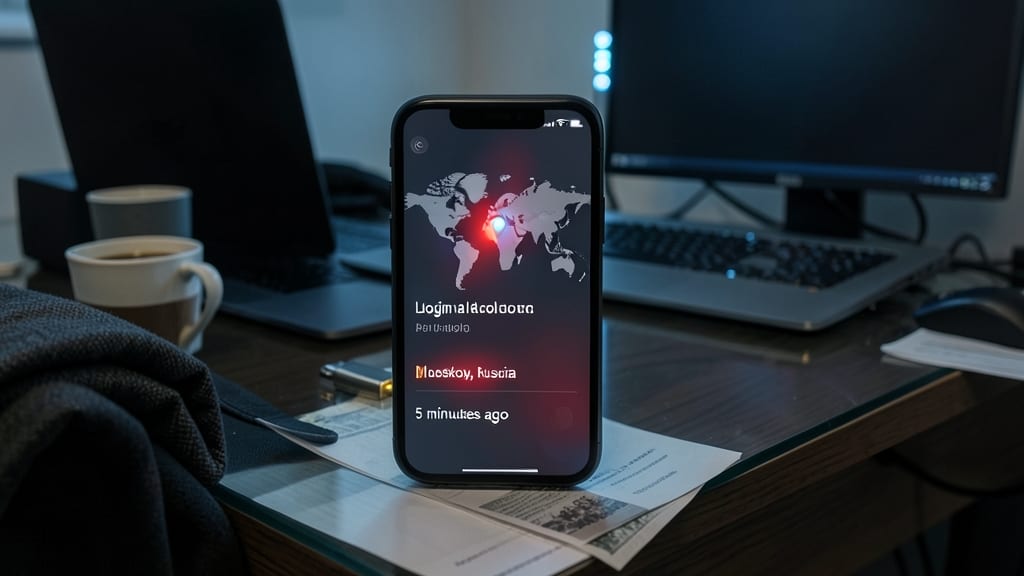
Hackers don’t always need to break in—they just wait for you to leave the door unlocked. Login alerts act like motion sensors for your accounts, notifying you instantly when suspicious activity occurs, whether it’s a login from an unfamiliar country or an unexpected password reset.
Most major platforms offer these features for free: Gmail’s "Less Secure App Access" warnings, Microsoft’s "Sign-in alerts", and Google’s Security Checkup scan for vulnerabilities. Bank apps like Chase and Wells Fargo provide real-time fraud notifications, while cloud services (Dropbox, Slack) let you monitor file access. The key is enabling two-factor authentication first—then layering alerts on top for maximum protection.
This is especially critical for freelancers, remote workers, and small business owners who often juggle multiple accounts. With zero setup cost and just a few clicks, you gain peace of mind knowing breaches get caught before damage spreads. 💡
Backup critical data automatically
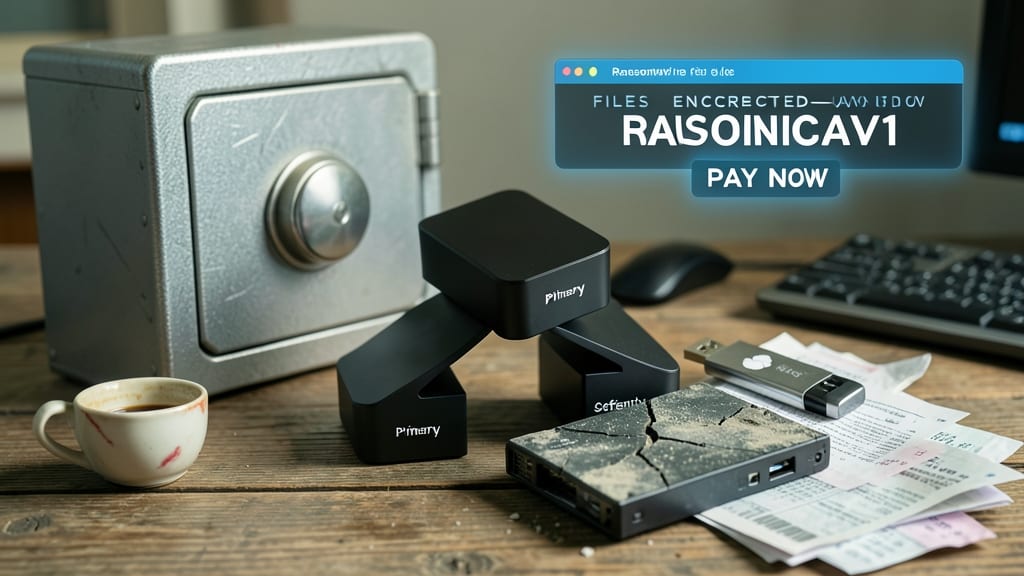
Ever lost a project to a crashed hard drive or feared ransomware locking your files forever? The 3-2-1 backup rule is your lifeline—3 copies of your data, stored on 2 different media types, with 1 copy offsite. This isn’t just theory; it’s the gold standard for freelancers, photographers, and anyone with irreplaceable files.
Automate this with tools like Backblaze (unlimited cloud backups for $6/month) or Acronis True Image (full system imaging with encryption). Schedule daily backups to an external drive, then sync a copy to a cloud service. Ransomware can encrypt your primary files, but if you’ve got clean backups, recovery is just a restore away.
Photographers should prioritize NAS drives (like Synology) for local redundancy, while freelancers can use Dropbox’s versioning to recover deleted files. Set it up once, and you’ll sleep better knowing your work is protected. ✨
Install antivirus and anti-malware
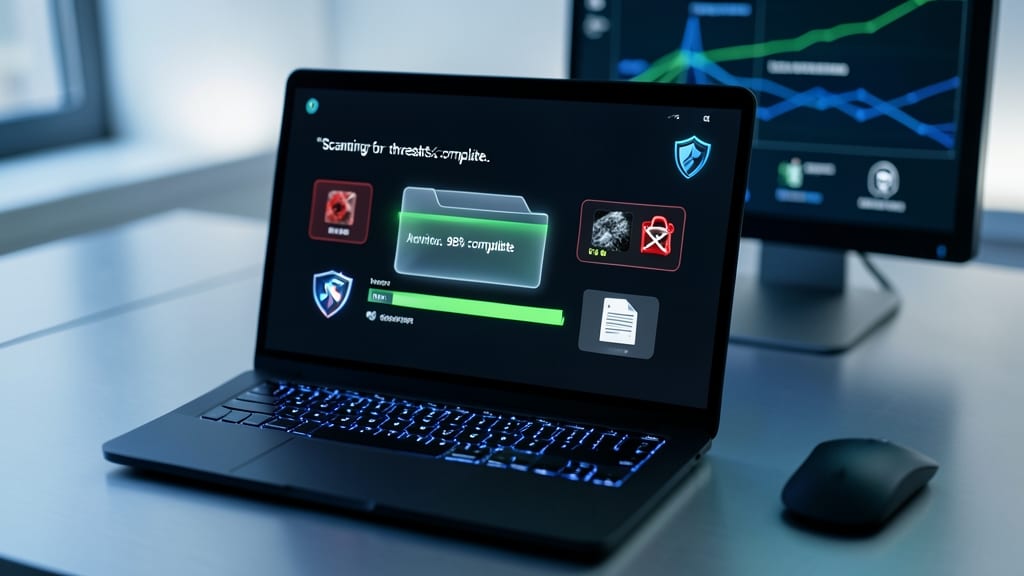
Downloading files from the web? Whether it’s free software, game patches, or work documents, real-time antivirus scanning is your first line of defense against zero-day exploits. Unlike firewalls that block network traffic, antivirus tools inspect files before they execute—stopping malware like ransomware or spyware from gaining a foothold.
Windows users can rely on Windows Defender, which now includes cloud-delivered protection and behavioral threat analysis—no extra software needed. For Linux systems, ClamAV (lightweight) or Malwarebytes (cross-platform) offer deep scanning without draining resources. Even macOS users should enable XProtect and Gatekeeper to block unsigned apps.
This is non-negotiable for freelancers, developers, and gamers who frequently download files. A quick scan takes seconds but prevents hours of cleanup later. ⚡