
Tip & Trick
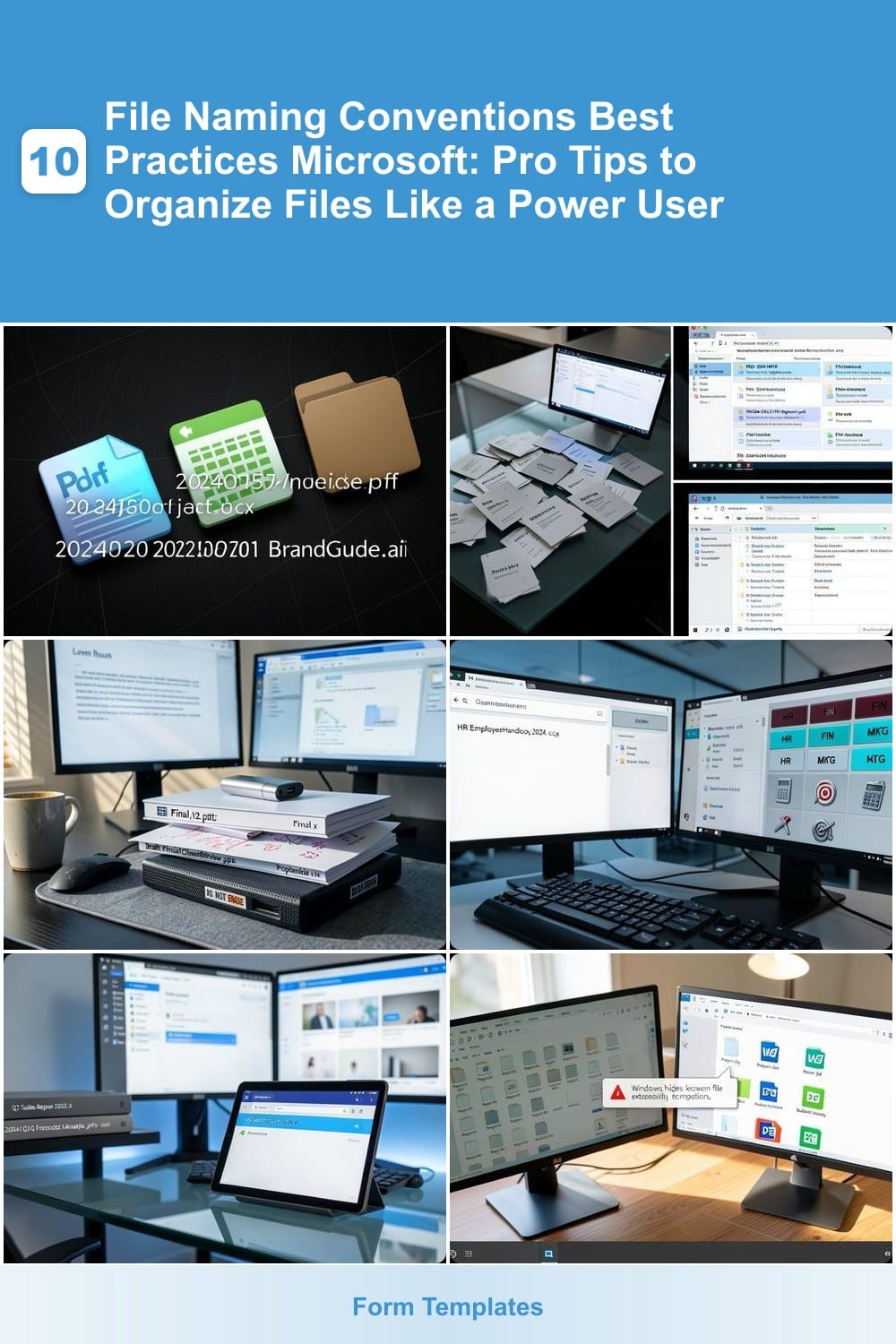
Struggling to find files in your Microsoft ecosystem? A well-structured naming system saves time and reduces frustration. These seven file naming conventions will transform your digital organization, whether you're using Windows, Office 365, or OneDrive.
Date-Based Prefix Format for All Files
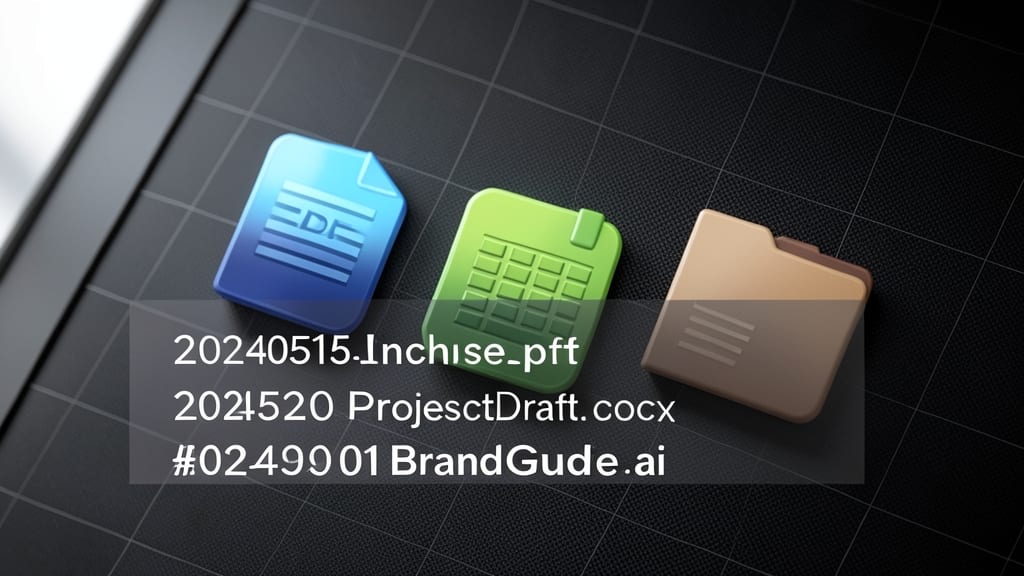
Struggling to track when a file was created or last updated? A date-based prefix format (like 20240515Invoice.pdf) turns chaos into chronological order—perfect for invoices, creative projects, or any work where deadlines matter. This system forces consistency by embedding the creation date (YYYYMMDD) at the start of every filename, making sorting and searching effortless in Windows Explorer, OneDrive, or SharePoint.
Use YYYYMMDD for global compatibility (no ambiguity with US/EU date formats) and underscores instead of spaces for cross-platform reliability. For example, 20240620ClientProposal_v2.docx instantly tells you the file’s age and version. Microsoft’s built-in sorting tools (like File Explorer’s "Sort by: Name") will automatically group files by date, while OneDrive’s search filters can pinpoint files from specific months or years.
Ideal for freelancers, accountants, or creative professionals, this method ensures no file gets lost in time. Whether you’re tracking project milestones or client deliverables, a date prefix keeps your digital life in order. ⚡
Project-Code Naming for Collaborative Teams
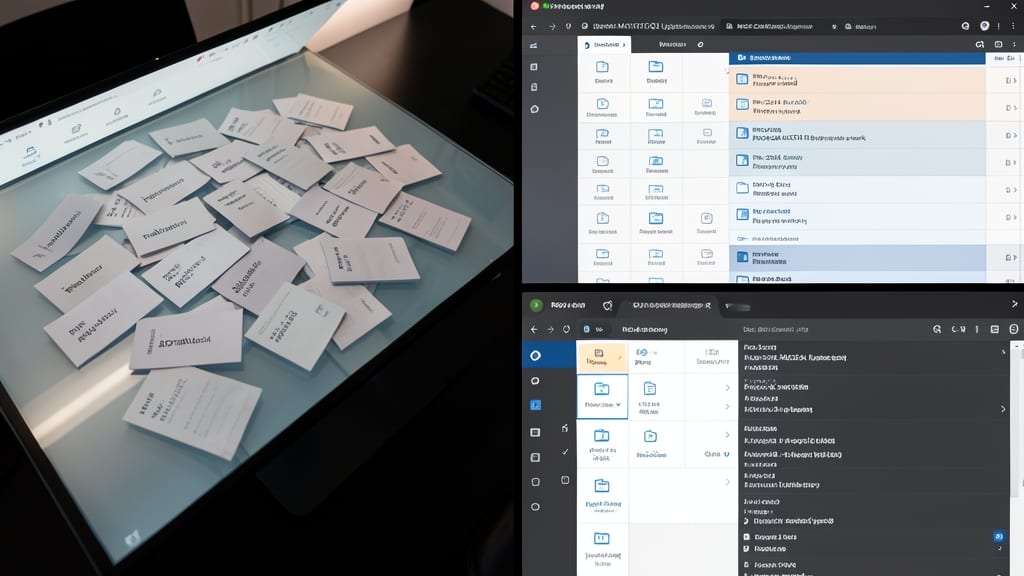
Frustrated by shared drives where files like "ProjectUpdate.docx" and "FinalDraft.docx" blend into chaos? A project-code naming system (e.g., PROJ-2024-MKTGQ2Update.docx) instantly transforms clutter into clarity. This method uses a standardized format—project abbreviation + year + department + purpose—so every team member knows exactly what they’re working with at a glance.
Start with a 3-letter project code (e.g., MKTG for Marketing), followed by the year (2024), then a clear descriptor (e.g., Q2_LaunchPlan). For Office 365, this system syncs perfectly with SharePoint libraries and Teams channels, where metadata filters can further refine searches. Use underscores instead of spaces to avoid compatibility issues across Windows, macOS, and mobile devices.
This approach is a lifesaver for marketing teams, product managers, and cross-functional groups collaborating on shared drives. With everyone using the same structure, files stay organized even as projects evolve. 💡
Version Control Suffix System
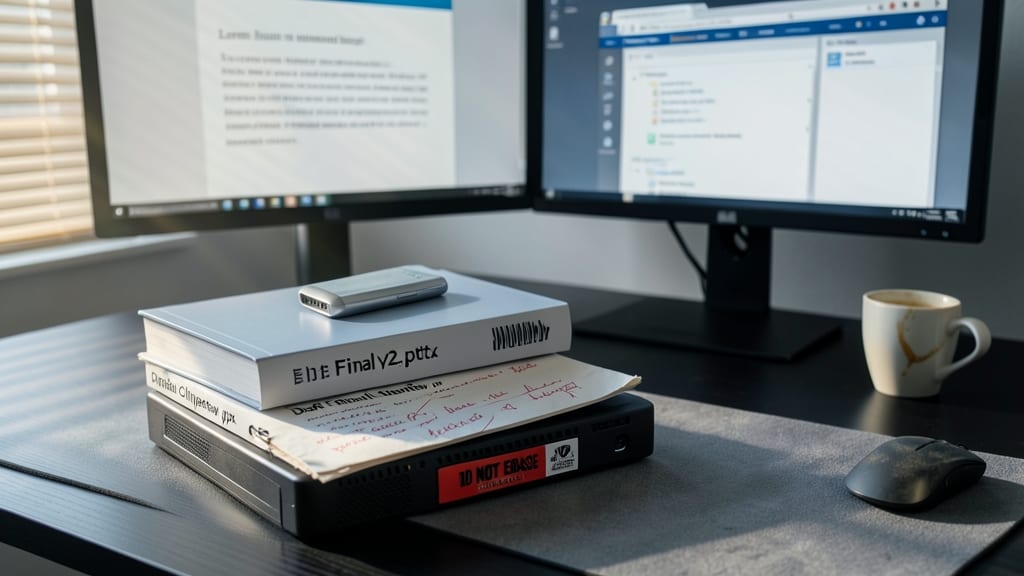
Tired of accidentally overwriting your latest PowerPoint draft? A version control suffix system keeps every iteration safe with clear labels like Finalv2.docx or DraftFinalClientReview.pptx. This method is a lifesaver for documents that evolve—think proposals, reports, or creative projects where multiple revisions are the norm.
Start with a base name (e.g., Q2Report), then append a version number (e.g., v1, v2) or status tag (e.g., Draft, Final). For extra clarity, include a short descriptor (e.g., _ClientFeedback). Microsoft Office’s AutoSave and OneDrive version history work seamlessly with this system, letting you recover older versions effortlessly.
This system shines for freelancers, marketers, and project managers juggling client feedback or team edits. It’s simple enough for solo work but scales perfectly for collaborative files in SharePoint or Teams. ⚡
Department-Specific Abbreviations
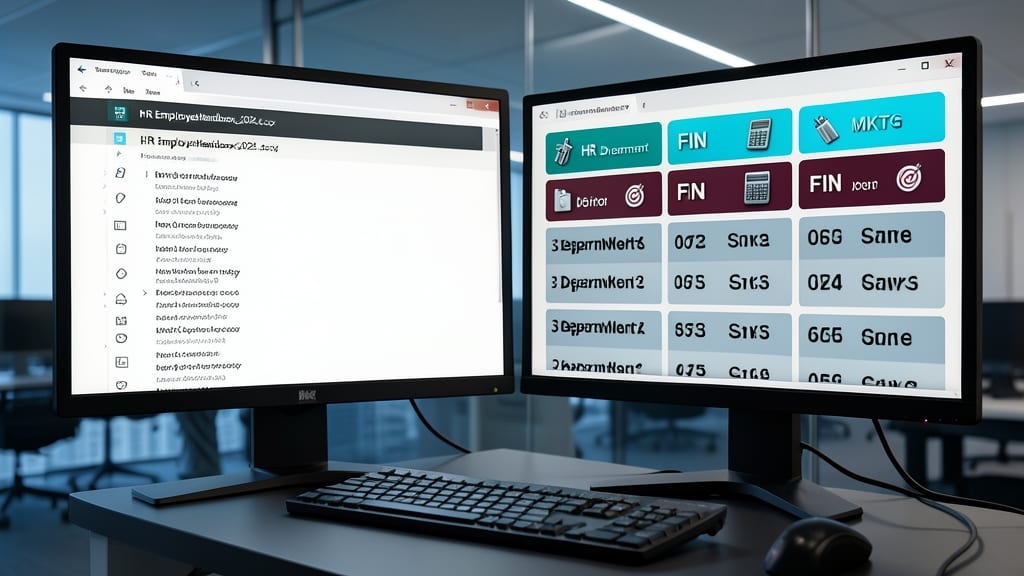
Tired of digging through shared drives to find the right file? Department-specific abbreviations like HR, FIN, or MKTG instantly categorize files by ownership, eliminating confusion in cross-departmental projects.
Prefixing files with 3-letter department codes (e.g., HREmployeeHandbook_2024.docx) ensures everyone knows exactly where a file belongs. This system works seamlessly in SharePoint and OneDrive, where metadata filters can further refine searches. For enterprises, pair these abbreviations with color-coded folder icons for visual reinforcement.
Ideal for companies with multiple teams, this method reduces misfiled documents and speeds up approval workflows. Perfect for HR, finance, and marketing departments sharing files across departments. 💻
Keyword-Based Naming for Searchability

Tired of digging through OneDrive or SharePoint folders to find that critical Q3 sales report? Keyword-based naming turns your files into search magnets by embedding key terms directly in the filename (e.g., Q3SalesReport2024.xlsx). This method leverages Microsoft’s built-in search intelligence to surface files instantly—no more scrolling or guessing.
Start by weaving 3-5 relevant keywords into your filename (e.g., CustomerOnboardingTemplate2024.docx). Use underscores instead of spaces for compatibility, and prioritize terms like project names, dates, or client identifiers. For data-heavy files, include metrics or versions (e.g., InventoryAudit2024Q2v1.csv). OneDrive’s search algorithm prioritizes filenames, so this method works even without tags or metadata.
This system is a game-changer for analysts, project managers, or anyone drowning in spreadsheets and reports. Spend less time searching and more time analyzing—your future self will thank you. ✨
File Type Extensions for Clarity
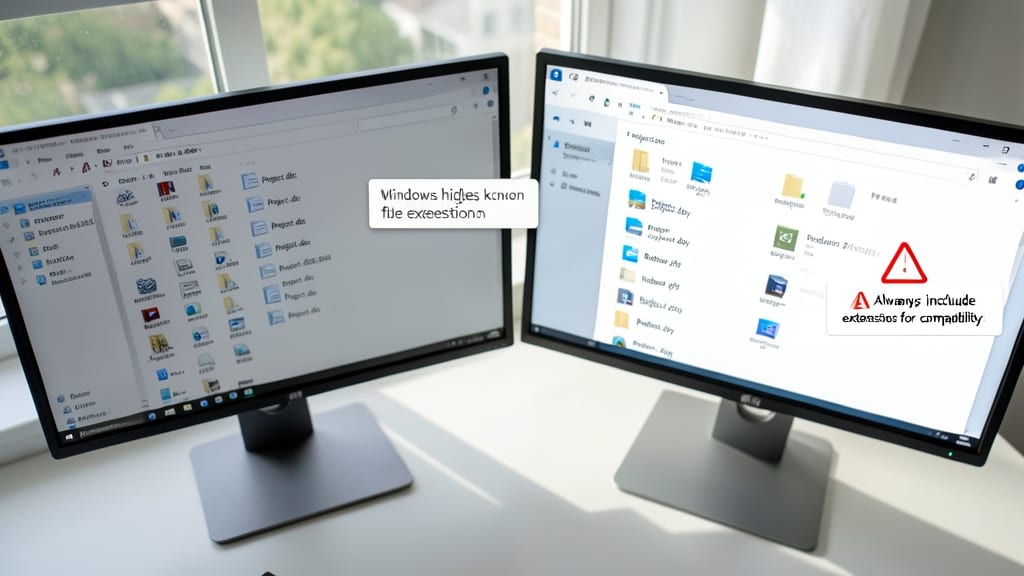
Legacy systems and older Microsoft software often hide critical file types when extensions are omitted—like Document.doc vs. Document.pdf. Always including the .pptx, .xlsx, or .pdf suffix eliminates guesswork, especially when sharing files across departments or systems.
Windows hides extensions by default, but enabling them (via File Explorer > View > Hidden items) reveals the full file type. For SharePoint or OneDrive, extensions ensure proper app associations—no more accidental double-clicks that open files in the wrong program. This rule is non-negotiable for IT teams managing Windows Server 2019 or older systems where file associations are stricter.
Developers, sysadmins, and anyone working with legacy software will appreciate this clarity. It’s the simplest way to future-proof your files. ✨
Client-Specific Naming for External Projects
Freelancers and agencies juggling multiple clients know the chaos of mixing projects—until you standardize with client-first naming. Placing the client name (e.g., AcmeCorpContractv3.pdf) upfront ensures instant visual recognition, while underscores () replace spaces for compatibility across Windows, OneDrive, and SharePoint.
Add a project type (e.g., LogoDesign, WebsiteMockup) and version suffix (e.g., v2) to avoid confusion. This structure works seamlessly with Microsoft’s search filters, letting you quickly locate files by client or project type. For example, TechSolutionsBrandGuide_Final.pdf leaves zero ambiguity.
Perfect for freelancers managing portfolios or agencies handling client work—this method builds trust by proving you’re organized, even before they open the file. ✨