
PowerPoint
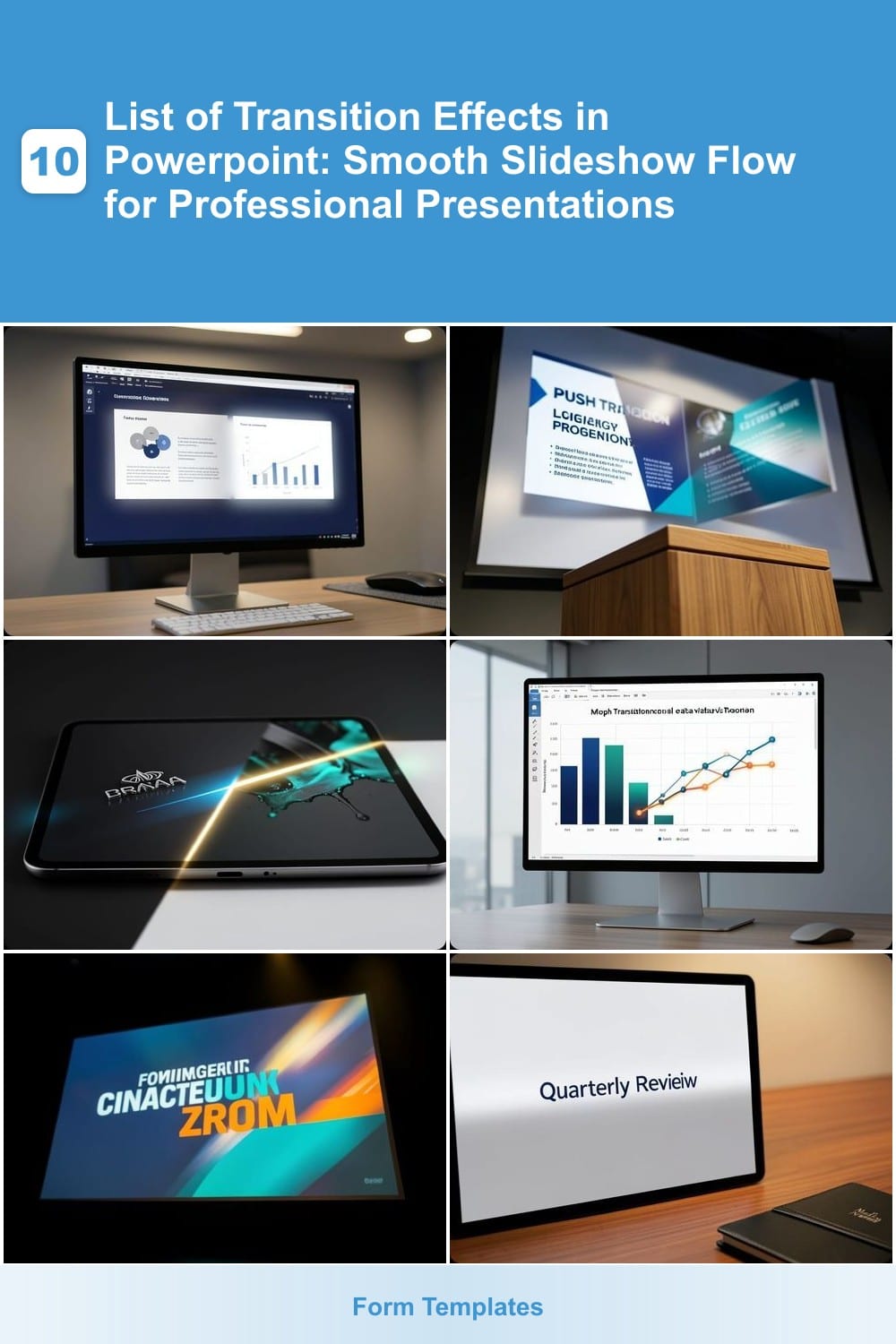
Want to make your PowerPoint presentations more dynamic and engaging? These seven transition effects help create smooth slideshow flow, keeping your audience focused and enhancing your professional impact without overwhelming your content.
Fade Transition for Elegant Slideshows
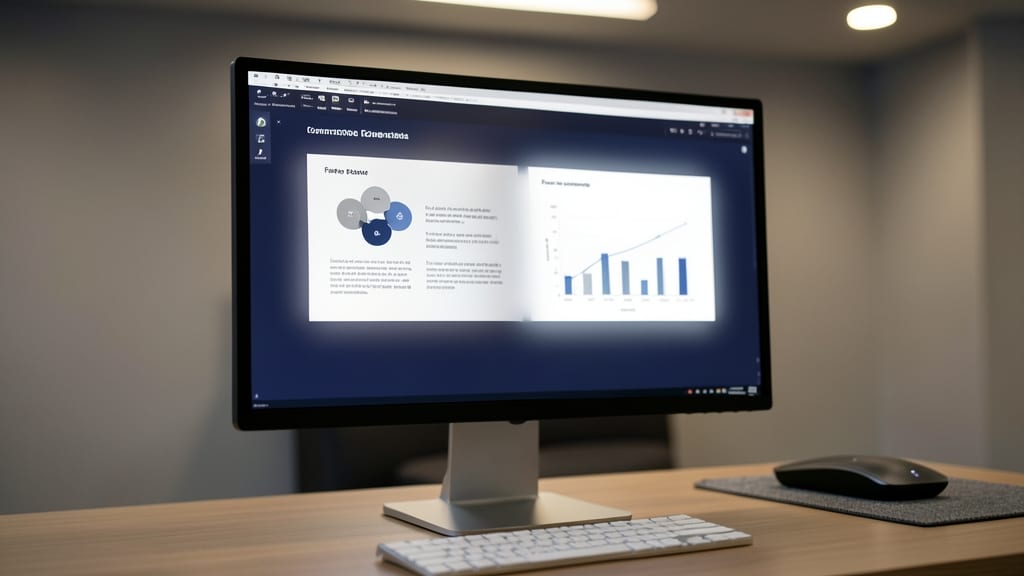
When your presentation demands clarity over flash, the Fade transition delivers a polished, distraction-free experience. This effect smoothly dissolves one slide into the next, ensuring your audience stays locked on your message—not your animations.
Available in PowerPoint 2016, 2019, and 365, the Fade transition works seamlessly across Windows and Mac. You can adjust the duration (0.01s to 10s) and even add subtle sound effects for a refined touch. Its zero-configuration approach makes it ideal for bulk slide applications via the Slide Show tab.
Perfect for corporate reports, academic research, or investor pitches, this transition subtly bridges ideas without stealing focus. For presentations where content reigns supreme, it’s the stealth upgrade your slides deserve. ✨
Push Transition for Dynamic Movement
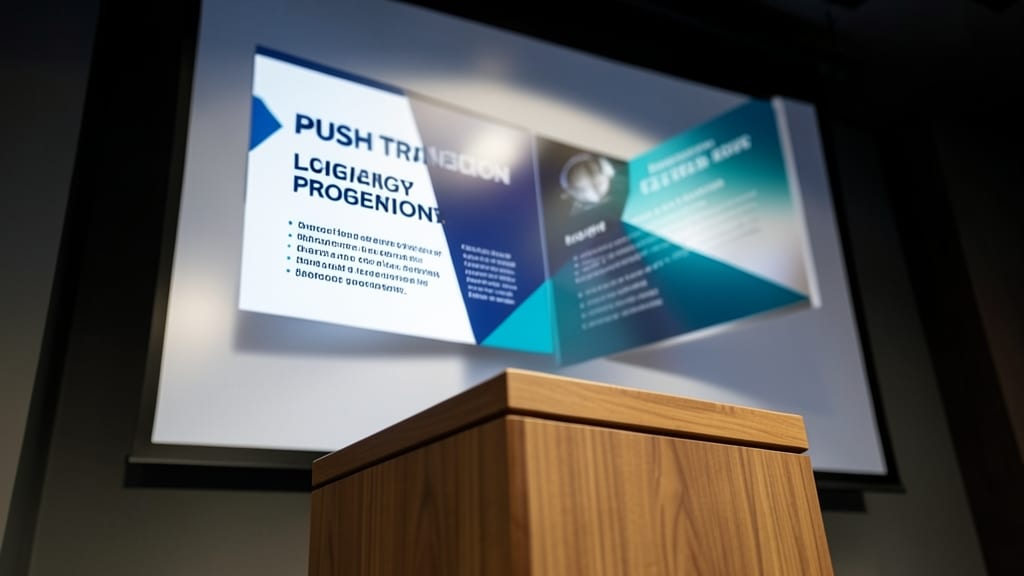
Need to make your audience feel like they’re moving forward in your presentation? The Push Transition adds a sense of momentum and progression, perfect for storytelling where each slide logically builds on the last—think sales pitches or project overviews.
This effect creates a directional slide shift, either left or right, with customizable speed and sound. Unlike the Fade Transition, which blends slides smoothly, the Push effect visually "pushes" content off-screen before revealing the next, making it ideal for sequential storytelling. Works seamlessly in PowerPoint 2016, 2019, and 365 across Windows and Mac.
Sales teams and project managers will love this for client demos or roadmap presentations, where progression feels intentional and engaging. Just avoid overusing it—subtlety keeps the focus on your message. ✨
Wipe Transition for Creative Presentations
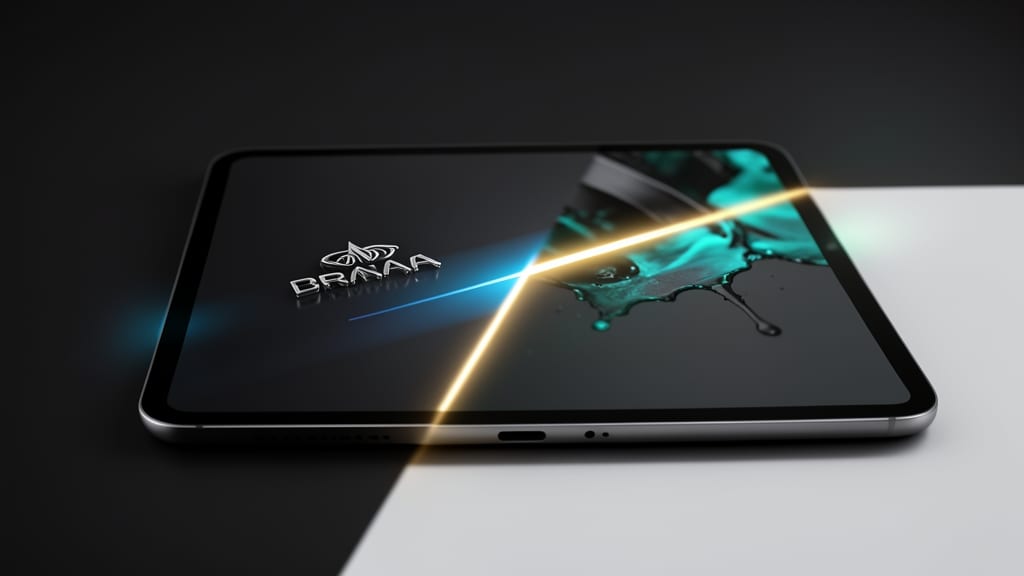
Need to make your brand reveal or creative portfolio stand out? The Wipe Transition delivers a bold, cinematic effect that feels like turning a page in a high-end presentation catalog. Unlike subtle fades or smooth pushes, this transition uses a dynamic line sweep (horizontal, vertical, or diagonal) to create a dramatic reveal—perfect for emphasizing a fresh start.
Available in PowerPoint 2016 and later (including Mac versions), this effect supports customizable timing and sound integration for extra flair. The directional wipe (left-to-right, top-to-bottom) lets you control the flow, while the speed adjustment ensures it matches your presentation’s rhythm without feeling rushed. For designers and marketers, it’s a game-changer for slides like "Before & After" comparisons or product launches.
This is the go-to choice for creative professionals who want to balance energy with polish—think agency pitches, design critiques, or even internal team showcases. Just avoid overusing it in data-heavy decks where clarity should reign. ✨
Morph Transition for Seamless Data Visualization
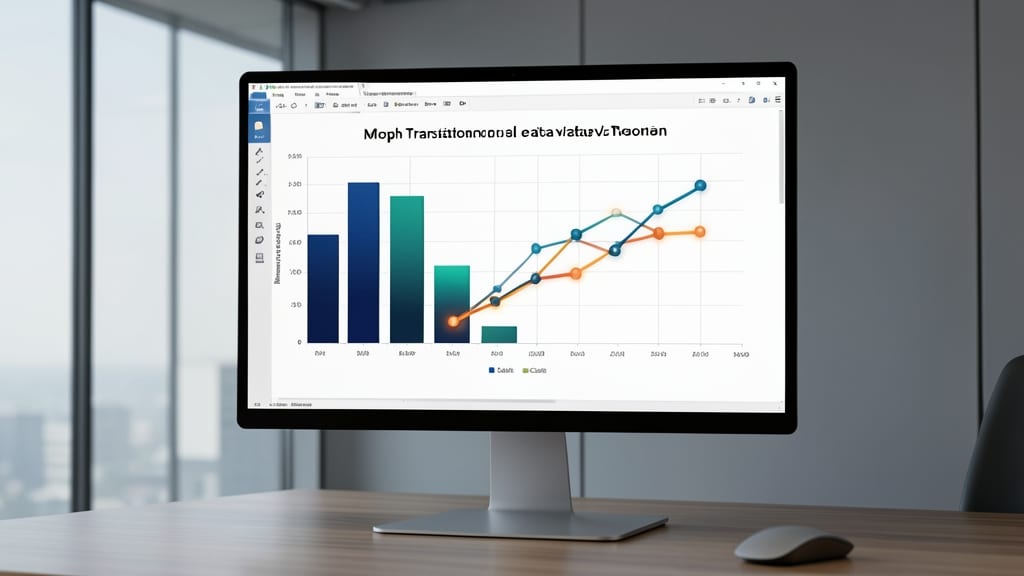
When your slides include complex charts or evolving data points, the Morph Transition in PowerPoint becomes your secret weapon. Unlike abrupt cuts or static slides, this effect fluidly reshapes elements—think bar charts evolving into line graphs—while preserving visual continuity.
Available in PowerPoint 2016 and later (including Mac and Office 365), the Morph Transition requires shape similarity (e.g., converting one pie chart to another) and works best with vector-based graphics. It’s ideal for financial forecasts or A/B comparison slides where showing progression without distraction matters most.
Perfect for analysts, marketers, or educators presenting data trends, this transition keeps audiences engaged without sacrificing clarity. ✨
Zoom Transition for Highlighting Key Slides
Need to make a slide pop during your keynote or training session? The Zoom transition delivers a cinematic effect by magnifying your key slide toward the audience, creating instant visual emphasis. Unlike subtle fades or smooth pushes, this transition commands attention—perfect for highlighting a call-to-action, final takeaway, or pivotal data point.
Available in PowerPoint 2016, 2019, and 365, the Zoom transition lets you adjust speed (from 0.1s to 5s) and direction (inward or outward). Pair it with a bold color scheme (like your brand colors) to amplify contrast. Pro tip: Use it sparingly—once per presentation—to avoid overwhelming your audience.
Trainers, sales teams, and conference speakers will love this for closing arguments or key milestones. Just don’t overdo it—this transition shines brightest when used strategically! ✨
Slide Transition for Classic Professionalism
When your audience expects understated polish—not flashy distractions—the Slide transition delivers effortless professionalism with a simple horizontal shift. Unlike dramatic zooms or wipes, this built-in PowerPoint effect maintains focus on your content while adding a touch of polish that conservative industries like law or government appreciate.
Available in all PowerPoint versions (including 2016, 2019, and 365), this transition offers zero customization complexity—just apply it directly from the Transitions tab with a single click. The subtle movement ensures compatibility with any design, from classic beige backgrounds to modern corporate templates, without overpowering your message.
Perfect for legal briefs, government reports, or client proposals where subtlety speaks louder than spectacle. It’s the go-to choice when you want to convey authority without drawing attention to the presentation itself. ✨
Random Bars Transition for Playful Presentations
Tired of the same old slide transitions? The Random Bars effect injects energy into your presentations with its chaotic yet controlled visual flair. Unlike polished transitions, this one uses colorful, dynamic bars that move unpredictably—perfect for breaking the monotony of standard slideshows.
Available in PowerPoint 2016 and later, this transition plays with direction, speed, and color to create a fresh, engaging experience. You can adjust the duration (0.1s to 10s) and even add sound effects for extra fun. The effect works best when paired with vibrant backgrounds and bold fonts, making it stand out in casual or creative settings.
Ideal for team brainstorming sessions, casual workshops, or playful internal meetings, this transition keeps your audience engaged without sacrificing clarity. Just don’t overdo it—save it for moments when you want to spark excitement! ✨