
Software
Microsoft Teams channels can become cluttered or disorganized if not managed properly. These 10 best practices will help your team stay focused, productive, and stress-free by keeping communication clear and collaboration seamless.
Organize Channels by Department or Project
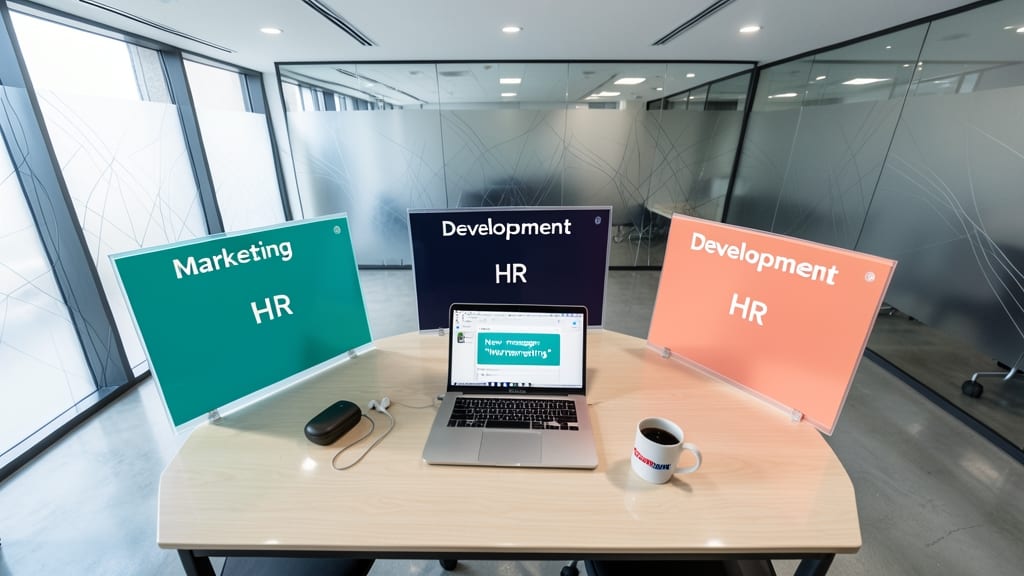
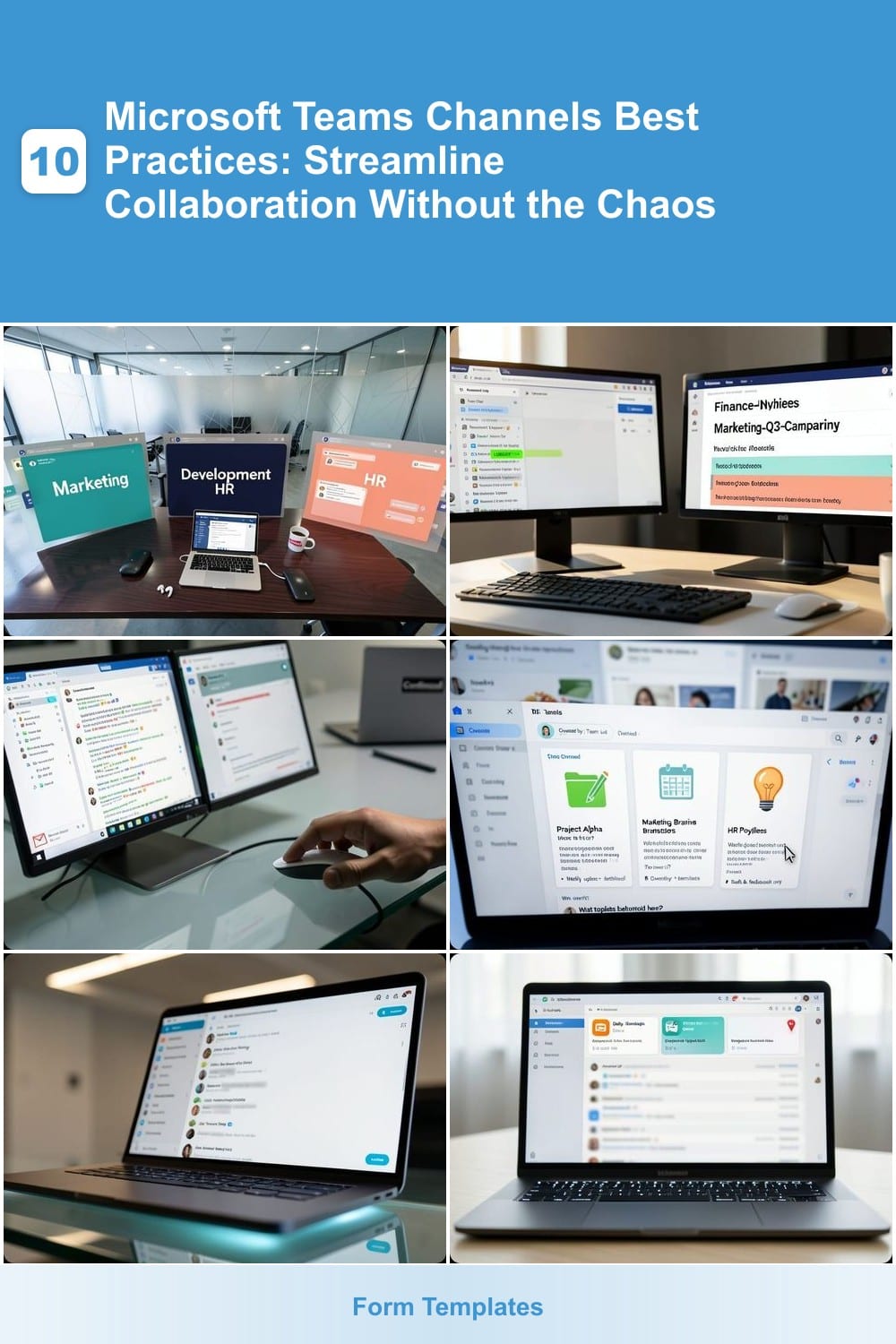
Struggling to find the right conversation in a sea of channels? Organizing channels by department or project cuts through the noise by grouping discussions logically—so your Marketing team stays in one place, while Development updates don’t mix with HR announcements. This simple structure prevents wasted time scrolling through unrelated topics, keeping everyone focused on what matters.
Microsoft Teams makes this easy: Create a team for each department (e.g., Sales, Engineering) and nest channels under them (e.g., Sales-Q1-Campaign, Engineering-Sprint-Plans). For cross-functional projects, use a dedicated team (e.g., Product-Launch-2024) with channels like Design, Marketing, and Dev. Pro tip: Use color-coded team icons to visually separate groups at a glance.
This works best for large teams or remote organizations where context-switching slows productivity. Start with your busiest teams—like Customer Support or Product Development—and watch engagement (and efficiency) climb. 💻
Use Standardized Channel Naming Conventions
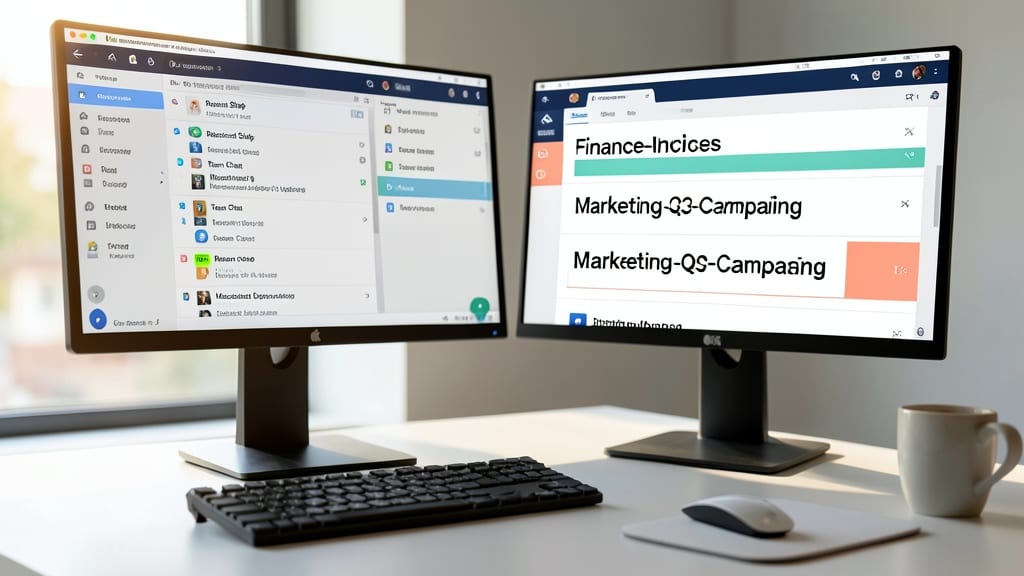
Frustrated when new team members waste time hunting for channels named things like "Random Stuff" or "Team Chat"? Standardized naming conventions eliminate that guesswork by using clear, predictable formats like Finance-Invoices or Marketing-Q3-Campaign—so everyone knows exactly where to go.
Microsoft Teams doesn’t enforce naming rules, but adopting a simple structure—like Department-Project-Type—creates instant clarity. For example, HR-Onboarding-2024 tells new hires this channel is for current onboarding, not past years. This works especially well when combined with channel descriptions (covered later), as the name alone often reveals ownership and purpose at a glance.
Teams with high turnover or cross-functional projects see the biggest benefits—new members jump in faster, and searches become effortless. Start with one team as a pilot, and watch confusion (and lost time) disappear. 💡
Enable Channel Moderation for Sensitive Topics

Not every conversation in Teams deserves an open forum—especially when sensitive topics like HR policies or legal updates are on the line. Channel moderation adds a critical approval layer, ensuring only relevant, accurate posts appear in channels where misinformation could have real-world consequences.
To enable it, go to Channel Settings > Moderation and toggle Approval Required for posts. You’ll then see pending messages in a Moderation Queue, letting admins review content before it goes live. This works seamlessly with Teams Premium (or free for government/education orgs) and integrates with compliance tools like Microsoft Purview for extra oversight.
Ideal for HR teams, legal departments, or any group handling confidential discussions, this feature transforms chaotic channels into controlled, professional spaces where trust (and accuracy) stay intact. ✨
Leverage Channel Descriptions for Quick Reference
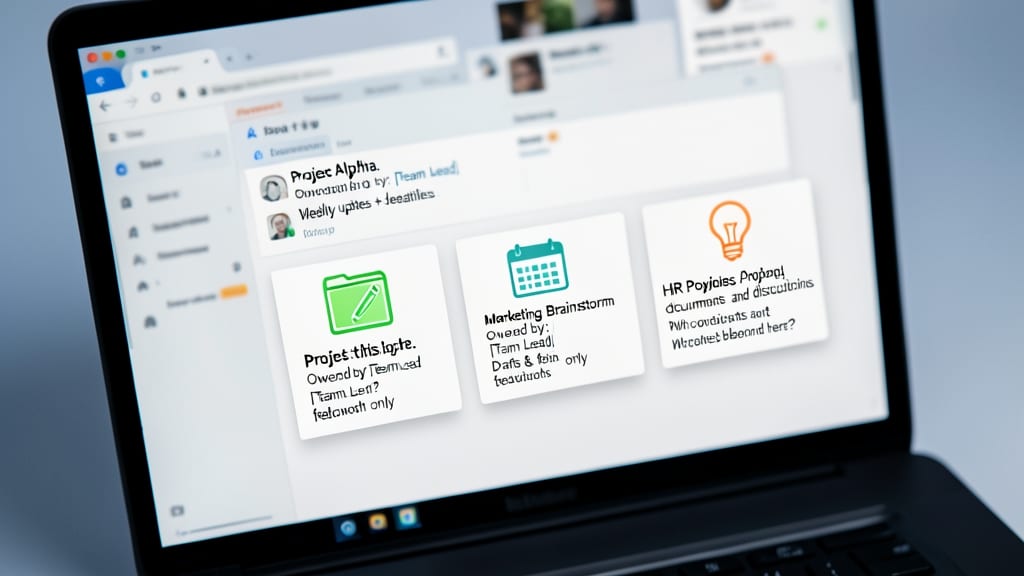
Ever wasted time scrolling through channels only to realize it wasn’t the right one? A clear channel description solves that instantly by answering three key questions upfront: What’s this channel for? Who owns it? What topics belong here?
Microsoft Teams lets you add a custom description when creating a channel—use it to specify the purpose (e.g., "Project X Updates"), key topics (e.g., "Timeline, Budget, Risks"), and owner (e.g., "@Sarah"). This saves new members from guessing and keeps discussions focused. Pro tip: Update descriptions when channel roles or topics change!
Teams with rotating members or cross-functional projects benefit most—think onboarding new hires or freelancers who need quick context. A well-crafted description cuts confusion by 50%. ✨
Archive Inactive Channels Regularly

Tired of scrolling past outdated channels like "2023-Event-Planning" or "Old-Project-Docs" that still clutter your Teams sidebar? Archiving inactive channels keeps your workspace lean and distraction-free while preserving access to past conversations.
Microsoft Teams makes this effortless: Right-click any channel, select "Archive channel", and it vanishes from your daily view but remains searchable for future reference. This works perfectly for one-off projects or seasonal teams—no need to delete valuable discussions. Plus, admins can set automatic archiving rules for channels older than 90 days.
Perfect for marketing teams wrapping up campaigns or IT departments managing legacy projects. Try it today—your sidebar will thank you! ✨
Pin Frequently Used Channels for Easy Access
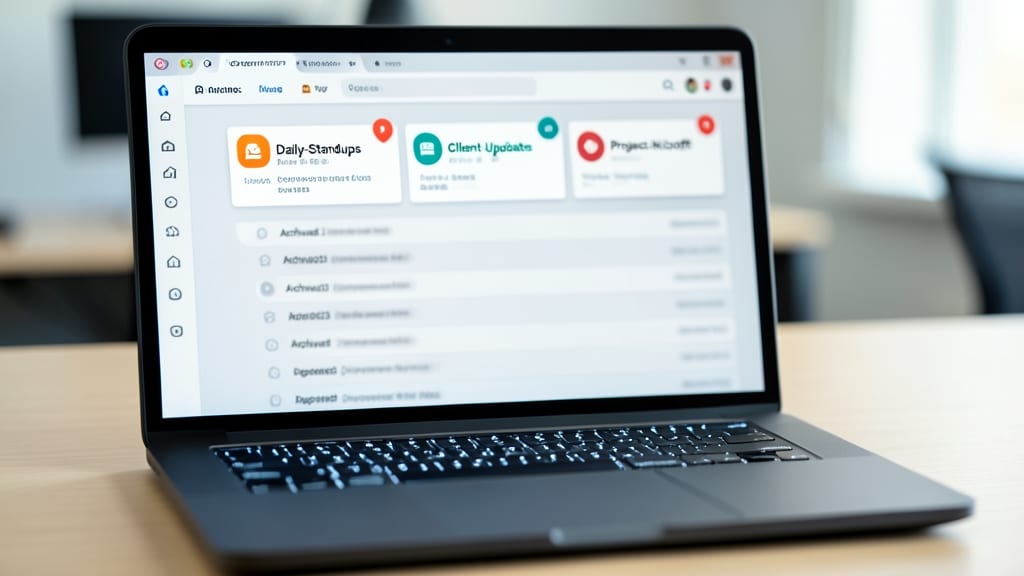
Tired of scrolling through endless channels to find the ones you actually need? Microsoft Teams’ pin feature lets you lock critical channels—like Daily-Standups or Client-Updates—right at the top of your sidebar. No more hunting for urgent discussions buried under outdated projects or archived teams.
Pinning is zero-config: Just click the pushpin icon next to a channel’s name, and it stays fixed until you unpinned it. Teams automatically remembers your pinned channels across devices, so your high-priority channels follow you from desktop to mobile. Perfect for managers juggling multiple projects or remote teams that rely on quick access to real-time updates.
This trick is a game-changer for fast-moving teams where time is money. Spend less time searching, more time collaborating. ✨
Limit Channel Membership to Relevant Teams

Tired of wading through notifications from channels you’ll never need? Limiting channel membership ensures only the right people—like the Engineering-Sprint-Plans team—see updates, cutting noise by up to 70%. Microsoft Teams lets you restrict access with just a few clicks, keeping discussions focused and actionable.
Start by navigating to the channel’s three-dot menu > Manage channel > Members. Here, you’ll see options to add or remove team members—or even restrict access to specific security groups for granular control. This isn’t just about reducing clutter; it’s about preserving context in channels where every post matters, like client updates or confidential brainstorming sessions.
Perfect for cross-functional teams or large organizations where not everyone needs access to every conversation. Teams working on sensitive projects or time-bound initiatives will see the biggest productivity boost from this approach. ✨
Use Tabs for Organizing Files and Tools
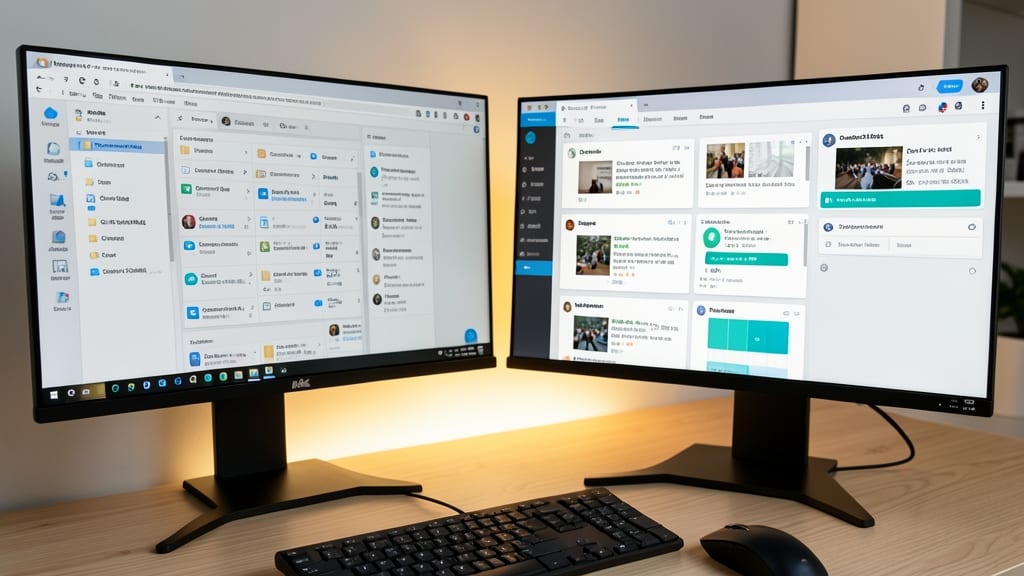
Tired of juggling between folders, cloud drives, and browser tabs to find project files? Microsoft Teams tabs turn every channel into a one-stop hub for all your essential resources—no more context-switching.
Add Files, OneNote, Planner, or even web links (like your team’s shared drive or CRM dashboard) directly to a tab. For example, a 'Shared-Docs' tab keeps contracts and spreadsheets in one place, while a 'Quick-Links' tab stores shortcuts to Slack, Trello, or internal wikis. Best of all, tabs sync across devices, so your tools follow you whether you’re in Teams on desktop or mobile.
Perfect for project managers coordinating files or remote teams who need instant access to tools without logging into separate apps. Say goodbye to the digital clutter—keep everything where the conversation happens! ✨
Set Clear Posting Guidelines for Each Channel
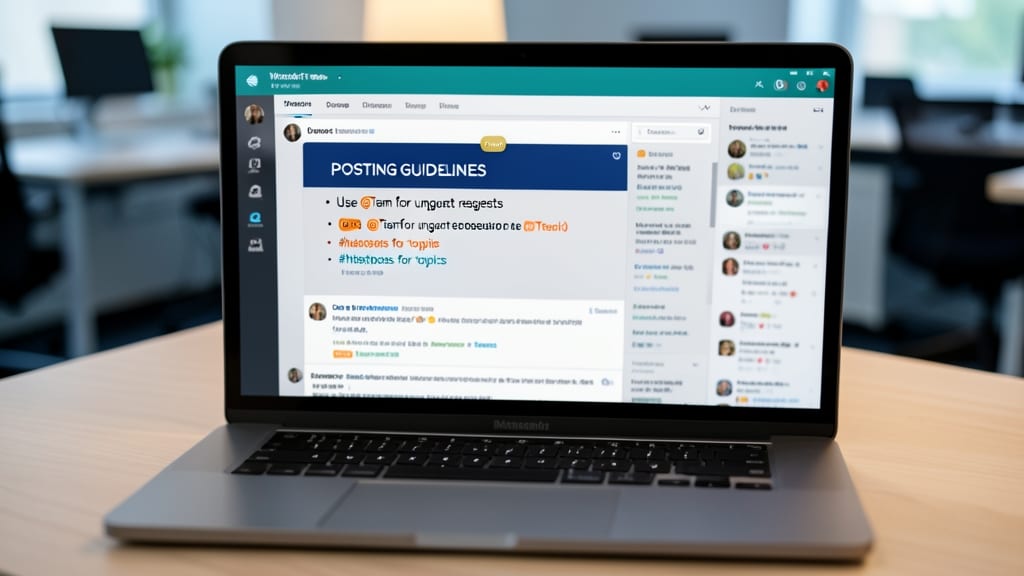
A single pinned post with clear posting guidelines can transform a chaotic channel into a well-oiled collaboration hub. Instead of guessing what’s appropriate, team members get instant clarity—like knowing whether to tag @Team for urgent requests or use #hashtags for topics—right at the top of the channel.
Start with a bullet-point list in a pinned post: "No personal chats," "Use @mentions for replies," or "Attach files to posts, not chats." This keeps discussions focused and searchable, while reducing the need for follow-up messages. For example, a #feedback channel might specify "Only post actionable suggestions" to avoid endless debates. The best part? Microsoft Teams lets you edit the pinned post anytime to adapt to new needs.
Teams with fast-moving projects or remote members benefit most—these guidelines cut down on off-topic noise and ensure everyone contributes meaningfully. ⚡
Schedule Regular Channel Cleanup Meetings
Ever feel like your Microsoft Teams workspace is slowly turning into digital clutter? A 15-minute monthly cleanup can transform chaos into a streamlined hub—without the overwhelm. Dedicate this time to prune outdated posts, merge duplicate channels, and audit unused tabs, ensuring only relevant content remains visible.
Start by identifying channels with no activity in 30+ days—archive or delete them. Next, scan for duplicate channels (e.g., "Marketing-Q1" and "Q1-Marketing") and consolidate them. Finally, review tabs and pinned posts—remove broken links or outdated resources. Use Teams’ built-in "Manage Teams" feature to declutter effortlessly.
This practice is ideal for growing teams or departments where channels multiply quickly. A fresh workspace boosts productivity and keeps everyone focused on what matters. ✨