
Discord
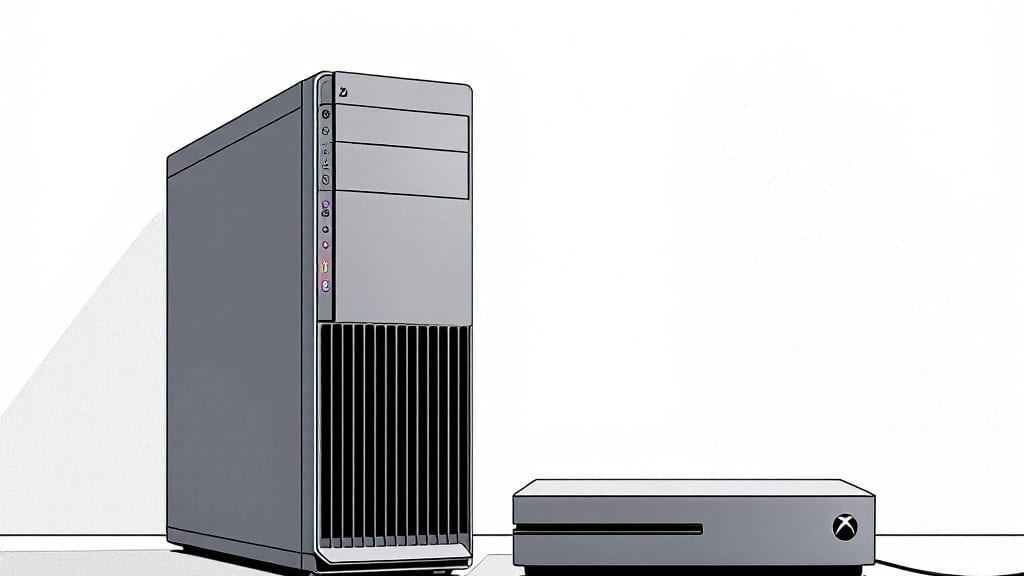
Xbox PC RGB syncs your Xbox console’s lighting effects with compatible Windows PCs, creating a unified visual experience across both devices. This feature works through Xbox Wireless Accessories or the Xbox app, letting you control colors and animations from either your console or PC.
This lighting feature turns your gaming setup into a cohesive ecosystem by linking the vibrant RGB displays of your Xbox console with compatible Windows PCs. 🔥 The magic happens through Bluetooth or Wi-Fi Direct protocols, where your Xbox app acts as the bridge between devices—sending real-time color data to supported LED peripherals on your PC.
It’s not just about aesthetics; many gamers use this to match their setup’s theme during multiplayer sessions or immersive gaming moments.
What’s great about this setup is how flexible it is. You can control everything from your Xbox console’s menu system or directly through the Xbox app on Windows, giving you granular control over colors, animations, and even syncing with game events.
Supported Xbox models include Series X|S and One, while PCs need compatible RGB lighting hardware like Razer Chroma or Corsair iCUE devices.
💡 In This Article
- How Xbox PC RGB Sync Works Technically
- Step-by-Step Guide to Enable Xbox PC RGB
How Xbox PC RGB sync works technically
Here's what's actually happening when your Xbox console and PC light up in unison: The system uses a combination of Bluetooth Low Energy (BLE) and Wi-Fi Direct protocols to create a direct communication channel between devices.
When you pair an Xbox Wireless Accessory (like a headset or controller), it establishes a BLE connection with your PC, while the Xbox app on Windows acts as the middleware that translates lighting commands between the two systems.
This dual-protocol approach ensures low latency—critical for real-time RGB animations that sync with game events or music.
The color data transfer works through a proprietary protocol Microsoft developed, where your Xbox console sends 16-bit RGB color values (65,536 possible colors) along with animation parameters to the Xbox app backend.
The app then forwards these instructions to your PC's RGB lighting software (like Razer Synapse or Corsair iCUE) via their respective APIs.
What's fascinating is how this system handles frame synchronization: Your Xbox can send up to 60 color updates per second, ensuring smooth transitions between effects without noticeable lag.
Supported Xbox models (Series X|S and One) all include the necessary hardware for this communication, while PCs require either a compatible wireless accessory or dedicated RGB lighting hardware with software support.
What most people don't realize is that the actual lighting hardware on your PC plays a massive role in the quality of this sync.
Most RGB devices use WS2812B or SK6812 LED drivers, which can handle up to 1,000,000 color changes per second—far more than needed for Xbox sync.
However, the limiting factor is often the PC's RGB software stack, which must be able to receive and process the Xbox app's commands in real-time. For example, Razer Chroma devices can handle this perfectly, while some budget LED strips might struggle with complex animations due to their simpler driver firmware.
The Xbox app handles this by automatically selecting the most compatible communication method based on what's connected.
There are some technical nuances that can affect performance. For instance, if your PC's Wi-Fi adapter doesn't support Wi-Fi Direct, the sync will fall back to Bluetooth, which might introduce slightly more latency (typically 10-20ms compared to 5-10ms over Wi-Fi).
Another factor is power management: Some PCs aggressively throttle Bluetooth connections to save battery, which can cause intermittent lighting drops. Microsoft's solution is to include priority flags in their protocol that tell the operating system to keep the Bluetooth connection active for gaming purposes.
This is why you'll often see the Xbox app running in the background even when you're not actively using it—it's maintaining that critical connection.
Let's talk about what's actually happening inside your Xbox console during this process. The lighting engine runs on the console's custom ASIC hardware, which handles all RGB animations independently of the main CPU.
When you select a lighting effect, the console's firmware compiles the animation into a series of color frames and sends them to the Xbox app via the wireless connection. The app then decodes these frames and translates them into commands that your PC's RGB software can understand.
This separation of concerns is what allows the Xbox to maintain smooth animations even while running demanding games—because the lighting system isn't competing for the main processor's resources.
The whole system is designed with gamers in mind, where visual feedback matters just as much as audio. For example, when you're playing a competitive multiplayer game, your Xbox might pulse red when you take damage, and that same effect will instantly appear on your PC's keyboard and mouse.
This creates an immersive experience where your entire setup feels like one cohesive unit. The technical magic happens in layers: the hardware connection, the protocol translation, and the software rendering—all working together to make your gaming environment react to your in-game actions in real-time. 💫
Frequently asked questions
Which Xbox consoles support PC RGB sync?
PC RGB sync works with Xbox Series X|S and Xbox One consoles. The feature relies on the console's wireless accessory protocols, so you'll need either an Xbox Wireless Headset or Controller to establish the connection with your PC. Xbox Series S also supports this functionality, though some older models like the original Xbox One may require firmware updates for full compatibility.
Do I need special RGB hardware for my PC to use Xbox lighting?
Yes, your PC needs RGB lighting hardware that's compatible with the Xbox app. Popular options include Razer Chroma devices, Corsair iCUE products, or other software-controlled RGB setups like Logitech G or SteelSeries peripherals. The Xbox app communicates with these devices through their respective software APIs to sync lighting effects. Budget LED strips without dedicated software may not work properly.
Why isn't my Xbox RGB syncing with my PC?
Common issues include Bluetooth interference, outdated software, or unsupported hardware. First, ensure both devices have the latest Xbox app and console updates. Restart your PC and console, then check Bluetooth settings to confirm the accessory is properly paired. If using Wi-Fi Direct, verify your PC's network adapter supports this feature. Keep devices within 30 feet and avoid placing them near other wireless devices that might cause interference.
Can I sync Xbox RGB with non-Razer/Corsair lighting?
Most software-controlled RGB systems work, but compatibility varies. The Xbox app officially supports Razer Chroma and Corsair iCUE, but third-party solutions like OpenRGB or Lian Li software may require additional configuration. For best results, check if your lighting hardware has a "generic RGB" or "third-party API" option in its control software. Some ASUS or MSI motherboard RGB systems also support this through their proprietary software.
How do I create custom Xbox RGB effects for my PC?
You can customize effects through the Xbox app's Lighting tab. Select any effect, then click "Edit" to adjust colors, speed, and patterns. Save your customizations as profiles and assign them to specific games or launch them manually. For advanced users, some third-party tools allow importing custom lighting animations that sync with Xbox effects. Remember that complex animations may require more powerful RGB hardware to display smoothly.
Final thoughts
So, there you have it—Xbox PC RGB isn’t just about flashy lights; it’s a seamless way to sync your gaming setup with your Xbox console, creating a cohesive and immersive experience.
Whether you’re a hardcore gamer or just love customizing your space, enabling RGB on your PC opens up a world of personalization that ties your gaming ecosystem together.
With just a few clicks in the Xbox app or Xbox Wireless Controller app, you can bring your favorite Xbox themes to life on your PC, making every session feel like a true extension of your console. Now go ahead—light up your setup and game on! 🎮✨